
Get it · Microsoft Edge
Add Rememberry to Microsoft Edge
In short
Get the Rememberry add-on for Microsoft Edge to translate vocabulary on web pages and review it with spaced-repetition flashcards. Basic use is free.
 Get it on Google Play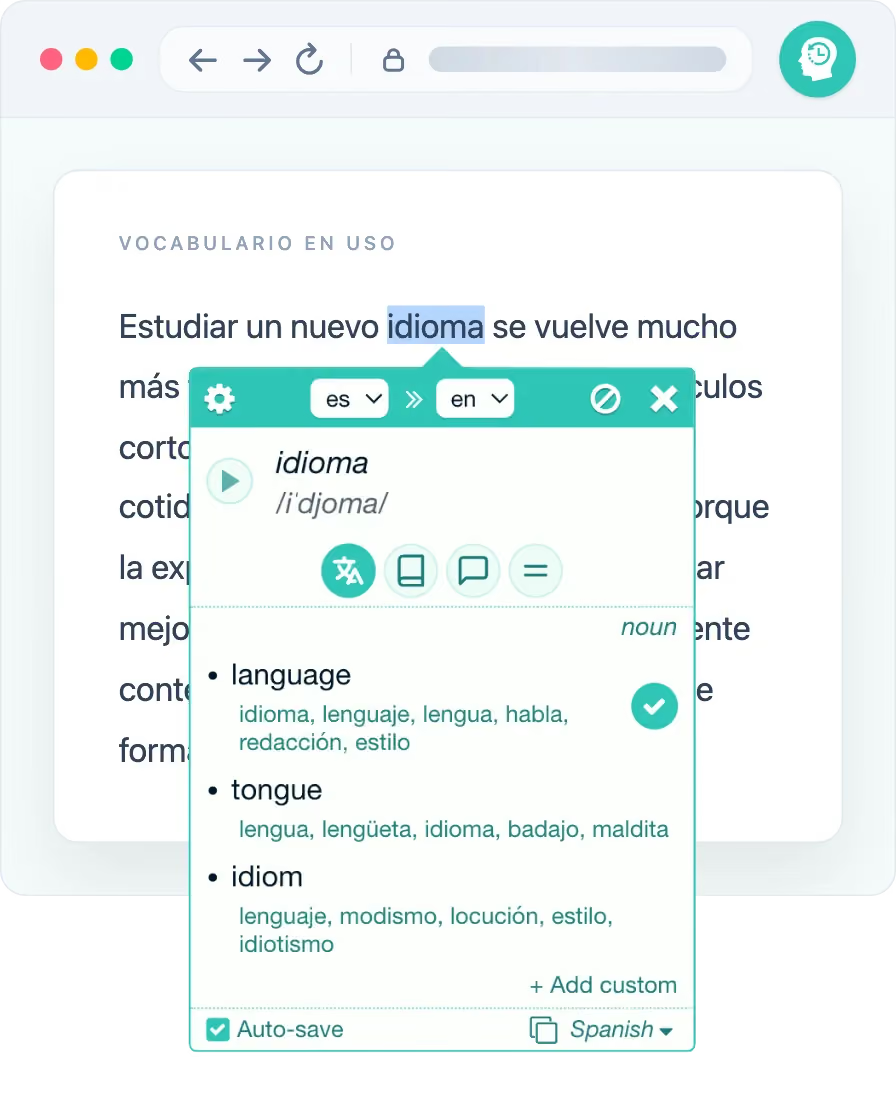
What you get in Edge
- Translate words and phrases in place across 100+ languages
- Dictionary details with transcription, definitions, synonyms, antonyms and examples for many languages
- Choose one or more meanings and save them to the deck you select
- Review with spaced repetition in Text, Listening and Typing modes
- In-page highlights mark saved vocabulary when it appears, with mini-reviews in place
- Cards and progress sync with the web and mobile app
Set up in three steps
- 1
Open Edge Add-ons
Visit the Rememberry page in the Microsoft Edge Add-ons store.
- 2
Get the add-on
Click Get and confirm the installation to add Rememberry to Edge.
- 3
Start translating
Select a word on a web page to translate it and save it as a flashcard.
FAQ
Edge add-on
How do I add Rememberry to Edge?
Open the Rememberry listing in the Microsoft Edge Add-ons store and click Get. It installs directly into Edge and appears in your toolbar.
Is the Edge add-on the same as the Chrome one?
The Chrome and Edge versions share the same core features: in-page translation, flashcards, spaced repetition and audio. Each comes from its browser's extension store.
Does my data sync from Edge to other devices?
Yes, with Pro. Cards and study progress sync between Edge and the Rememberry mobile and web app.
Use another browser?


Install Rememberry in Edge
Add Rememberry to Edge, then select a word to save your first card.